Skip to content
Kalever
  • How We Work
  • The Platform
  • Why Kalever
  • Resources
    • Articles
    • Product Decks
    • Case Studies
  • Contact
Kalever
  • How We Work
  • The Platform
  • Why Kalever
  • Resources
    • Articles
    • Product Decks
    • Case Studies
  • Contact

Getting Started

4
  • Your Home Dashboard: Overview
  • Account and Notification Settings
  • Create a New Project
  • Navigating the Project Dashboard

Pricing tool

2
  • How to Create a New Quote
  • How to Download, Edit, and Duplicate Quotes

Survey Creator

9
  • How to Create a New Survey
  • Survey from Old Project
  • Classic Editor: Control Area
  • Classic Editor: Overview
  • Classic Editor: Adding and Editing Survey Elements
  • Classic Editor: Using Custom Modules
  • Decipher Editor: Editing Your Survey
  • Dimensions Editor: Editing Your Survey
  • AI Assistant

TrackEntry Tool

4
  • Introduction to TrackEntry: Access and Overview
  • How to Create, Edit, and Manage Entries
  • Using Live Chat for Real-Time Communication
  • How to Integrate TrackEntry with a Decipher Survey

Codebooks Tool

2
  • Creating a Codebook for Open-Ended Data
  • How to Edit and Manage Your Codebook

Best Practices: A Project Lifecycle Guide

8
  • The Bidding Stage: Creating a Winning Quote
  • Phase 1: The Bidding Stage: Creating a Winning Quote
  • Phase 2: Project Kick-Off: Setting Up for Success
  • Phase 3: Questionnaire Design — From Idea to Final Draft
  • Phase 4: Initial Survey Programming: A Seamless Handoff
  • Phase 5: QA – Efficient and Traceable Survey Testing
  • Phase 6: Managing Client Feedback and Changes
  • Phase 7: Data Checks — Ensuring Data Quality

ResearchReady

4
  • Introduction to ResearchReady
  • Accessing ResearchReady
  • Running an Analysis within ResearchReady tool
  • Reviewing Results

QAReady

4
  • Introduction to QAReady
  • Accessing QAReady
  • Running a check with QAReady
  • Reviewing the Results
View Categories
  • Home
  • Knowledge Base
  • ResearchReady
  • Running an Analysis within ResearchReady tool

Running an Analysis within ResearchReady tool

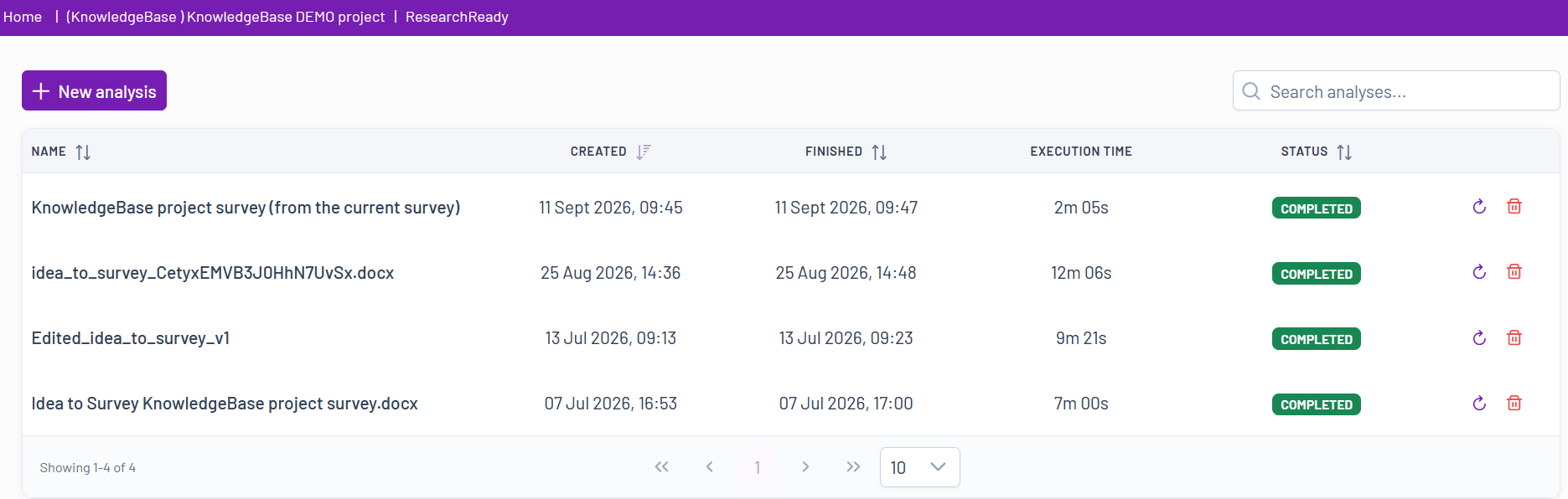
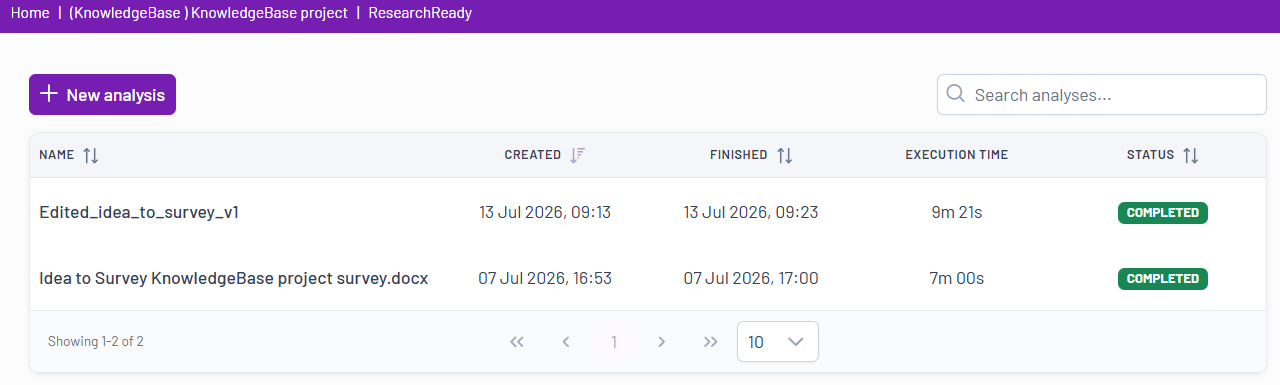
When you open the ResearchReady tool, you will see a list of all analyses created for the current project.

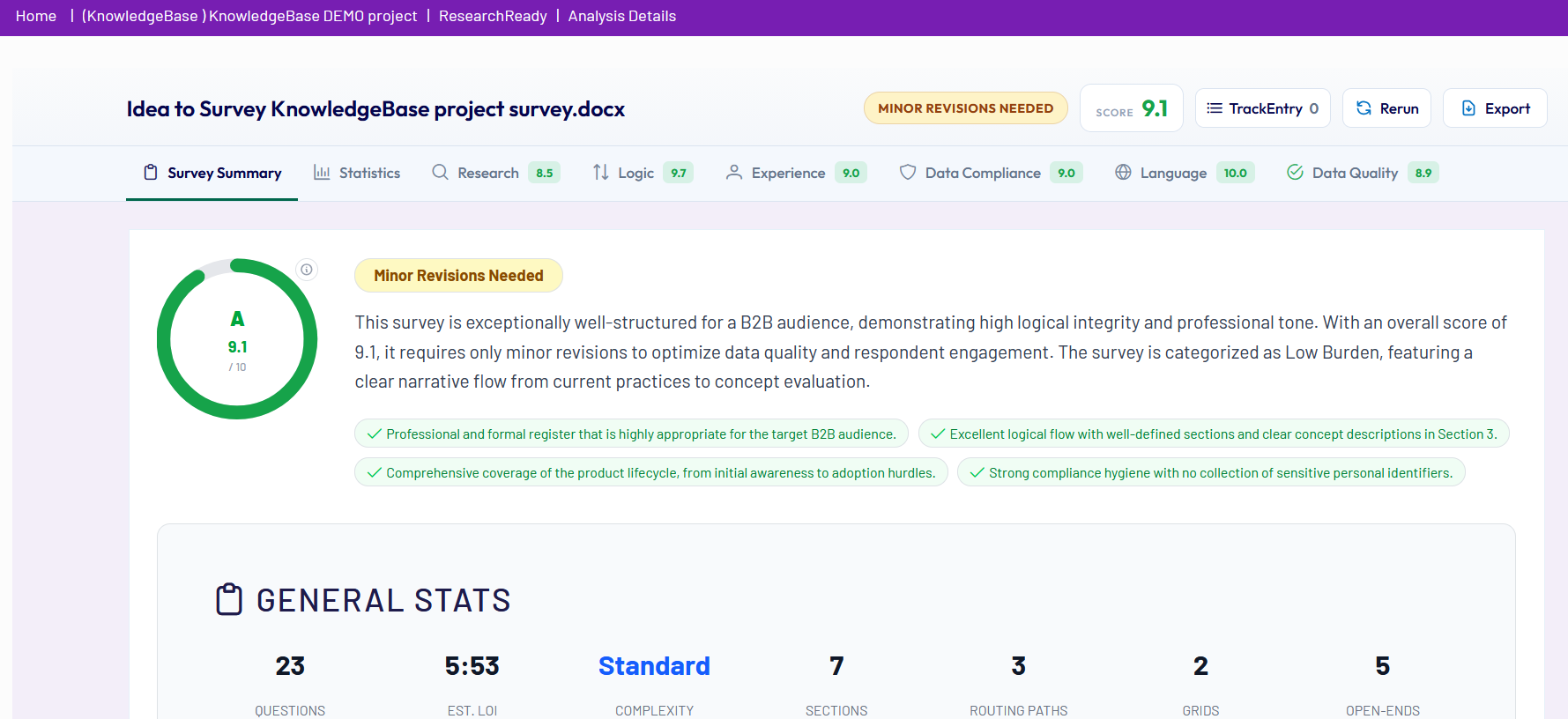
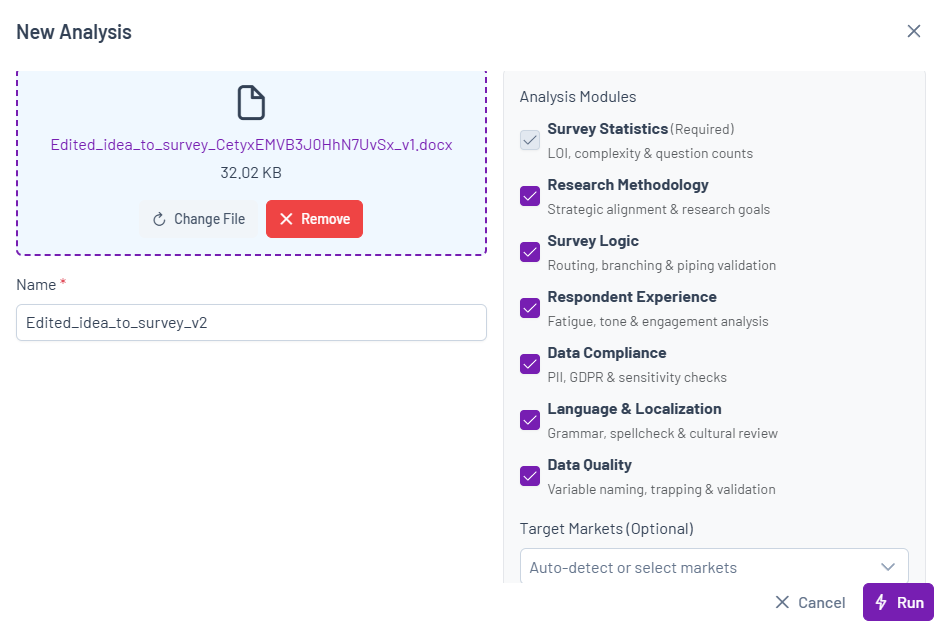
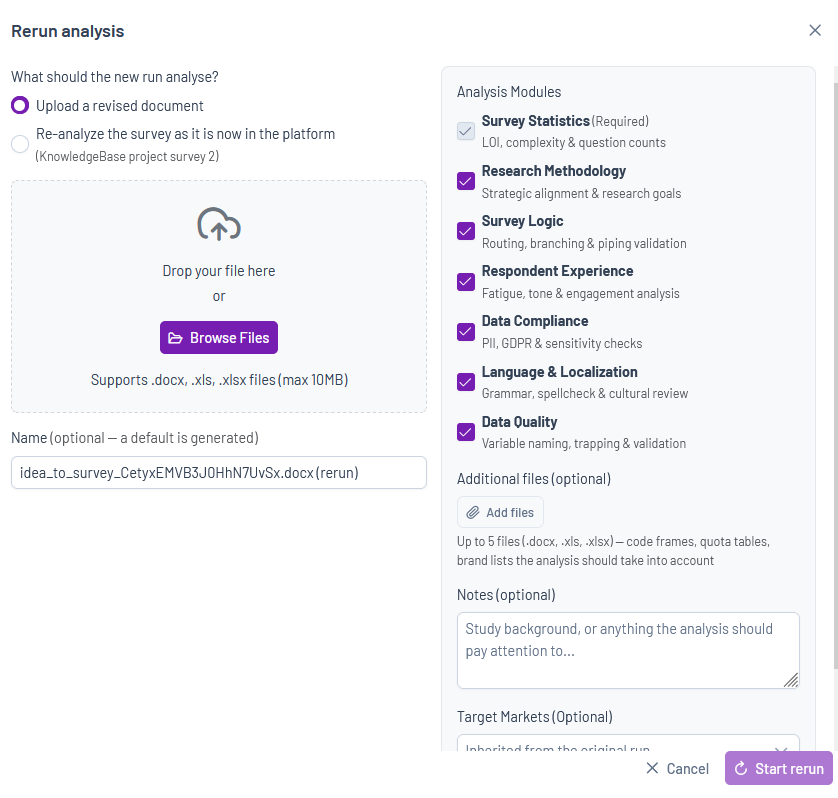
To run a new analysis, click the New Analysis button , upload your Word or Excel questionnaire, add any additional files, add notes or instructions, select the analysis modules you are interested in, start the analysis, and then review the generated results.

Analysis Modules #

ResearchReady includes multiple modules that can be enabled or disabled depending on your needs. On top of analyzing, each module also recommends improvements with a reliable question, text or section matching.

Required Module

  • Survey Statistics: Analyzes LOI, complexity, incidence rate and number of questions

Optional Modules:

  • Research methodology: Evaluates alignment with research goals and best practices in structuring a survey
  • Survey Logic: Validates routing, branching, and piping. 
  • Respondent Experience: Assesses fatigue, tone and engagement, flow complexity, mobile devices and semantic readability
  • Data Compliance: Checks for PII, GDPR, and sensitive data by evaluating relevant regulatory compliance
  • Language: Checks grammar, spelling, and cultural fit
  • Data Quality: Reviews structure and variable naming, verifies quality control inventory

Target Markets (Optional): Specify markets from a list or allow automatic detection

ResearchReady Rerun  #

You can rerun an existing ResearchReady analysis either by uploading an updated questionnaire or by reanalyzing the survey in its current state within the platform.

During the rerun setup, you can:

  • Upload a revised questionnaire or additional supporting files
  • Add notes or specific instructions
  • Select the analysis modules to include in the rerun
  • Review and edit the automatically generated analysis name, if required

There are two ways to start a rerun:

From the ResearchReady Analysis List

  1. Open the Project ResearchReady tool.
  2. Locate the analysis you want to rerun.
  3. Click the Rerun  icon next to the analysis.

From an Analysis Review

  1. Open an existing ResearchReady analysis.
  2. While reviewing the results, click Rerun in the upper-right corner of the page.

Once a rerun has started, its progress can be monitored directly in the application. When the analysis is complete, the results load automatically and the rerun is added to the list of ResearchReady analyses within the project, where it can be accessed at any time.

To remove analyses that are no longer needed, click the Delete icon  next to the relevant analysis in the analysis list.

Accessing ResearchReadyReviewing Results
Table of Contents
  • Analysis Modules
  • ResearchReady Rerun 

Share This Article :

  • Facebook
  • X
  • LinkedIn
  • Pinterest

Was it helpful ?

  • Happy
  • Normal
  • Sad
Contact form
Contact form
Linkedin

Copyright © 2026 Kalever | Powered by Kalever