Skip to content
Kalever
  • How We Work
  • The Platform
  • Why Kalever
  • Resources
    • Articles
    • Product Decks
    • Case Studies
  • Contact
Kalever
  • How We Work
  • The Platform
  • Why Kalever
  • Resources
    • Articles
    • Product Decks
    • Case Studies
  • Contact

Getting Started

4
  • Your Home Dashboard: Overview
  • Account and Notification Settings
  • Create a New Project
  • Navigating the Project Dashboard

Pricing tool

2
  • How to Create a New Quote
  • How to Download, Edit, and Duplicate Quotes

Survey Creator

9
  • How to Create a New Survey
  • Survey from Old Project
  • Classic Editor: Control Area
  • Classic Editor: Overview
  • Classic Editor: Adding and Editing Survey Elements
  • Classic Editor: Using Custom Modules
  • Decipher Editor: Editing Your Survey
  • Dimensions Editor: Editing Your Survey
  • AI Assistant

TrackEntry Tool

4
  • Introduction to TrackEntry: Access and Overview
  • How to Create, Edit, and Manage Entries
  • Using Live Chat for Real-Time Communication
  • How to Integrate TrackEntry with a Decipher Survey

Codebooks Tool

2
  • Creating a Codebook for Open-Ended Data
  • How to Edit and Manage Your Codebook

Best Practices: A Project Lifecycle Guide

8
  • The Bidding Stage: Creating a Winning Quote
  • Phase 1: The Bidding Stage: Creating a Winning Quote
  • Phase 2: Project Kick-Off: Setting Up for Success
  • Phase 3: Questionnaire Design — From Idea to Final Draft
  • Phase 4: Initial Survey Programming: A Seamless Handoff
  • Phase 5: QA – Efficient and Traceable Survey Testing
  • Phase 6: Managing Client Feedback and Changes
  • Phase 7: Data Checks — Ensuring Data Quality

ResearchReady

4
  • Introduction to ResearchReady
  • Accessing ResearchReady
  • Running an Analysis within ResearchReady tool
  • Reviewing Results

QAReady

4
  • Introduction to QAReady
  • Accessing QAReady
  • Running a check with QAReady
  • Reviewing the Results
View Categories
  • Home
  • Knowledge Base
  • Survey Creator
  • Survey from Old Project

Survey from Old Project

Overview #

Survey from an Old Project allows you to create or update a survey using existing survey code or project in the platform. Instead of building a survey from scratch or from a questionnaire, the platform starts from an existing survey and applies changes based on a new questionnaire and supporting materials.

This workflow is particularly useful for:

  • Tracker studies and new tracker waves
  • Existing surveys being rolled out to new markets
  • Copy-over projects
  • Studies where established survey logic should be preserved

Accessing Survey from old Project #

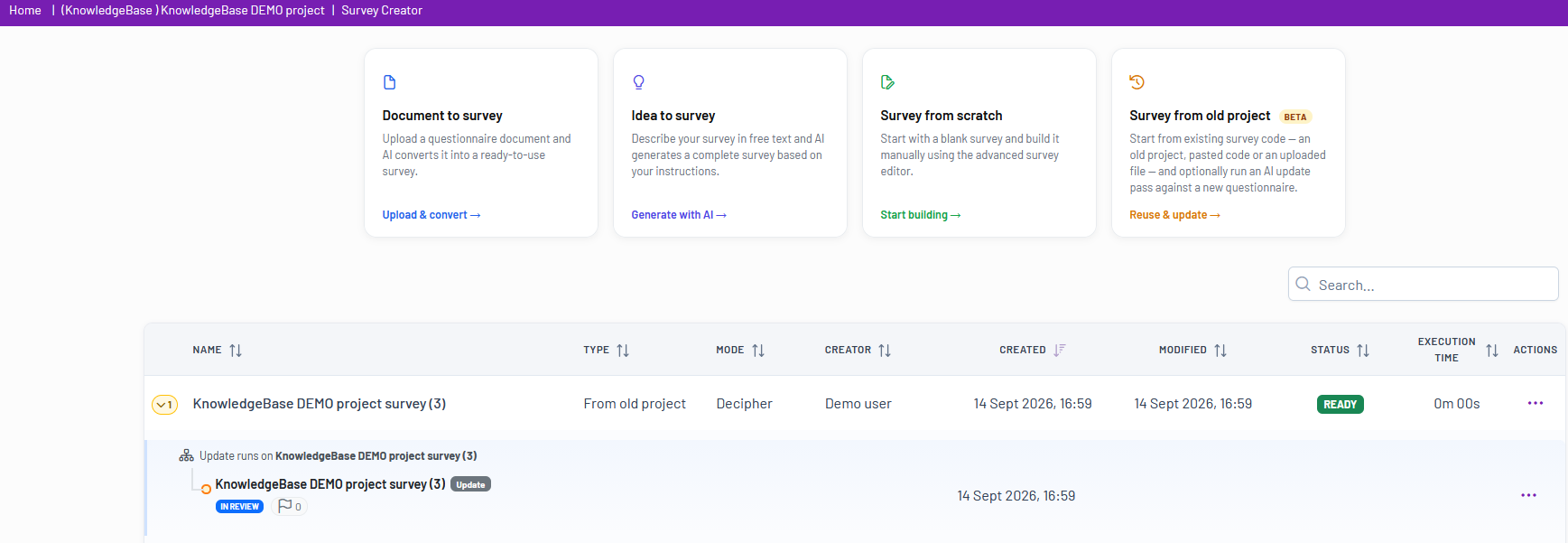
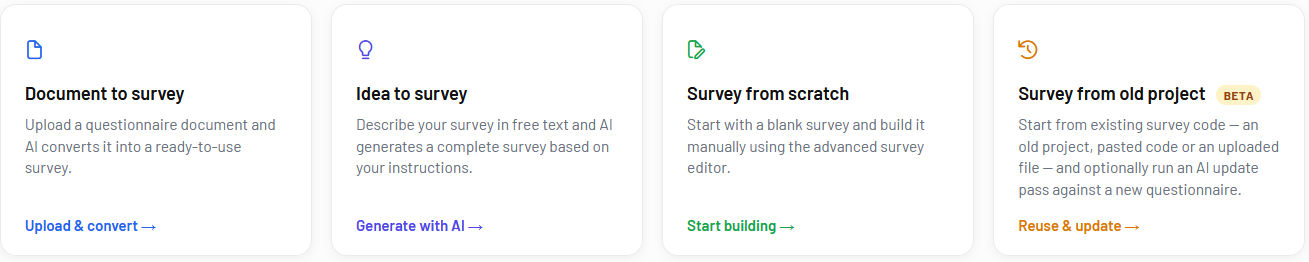
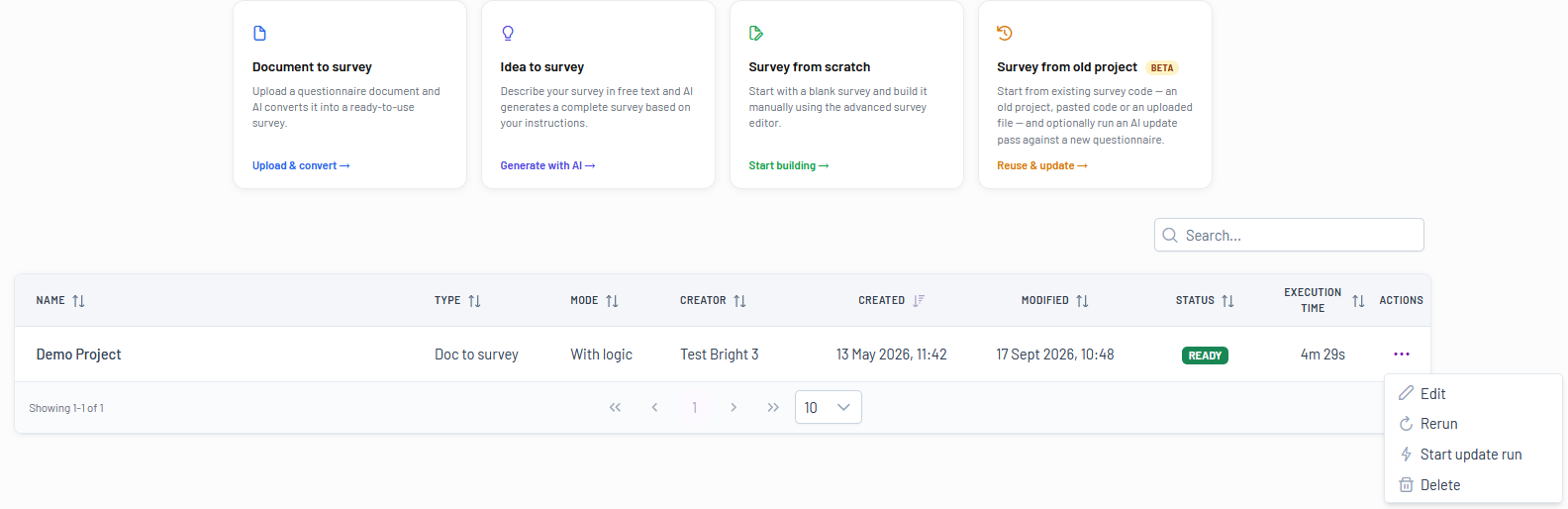
There are two ways to start a Survey from an Old Project workflow in the Survey Creator tool:

  • Open Survey from old Project from the Survey Creator home page:
  • From the survey list, open the Actions menu for the survey you want to update and select Start Update Run
Survey Types #

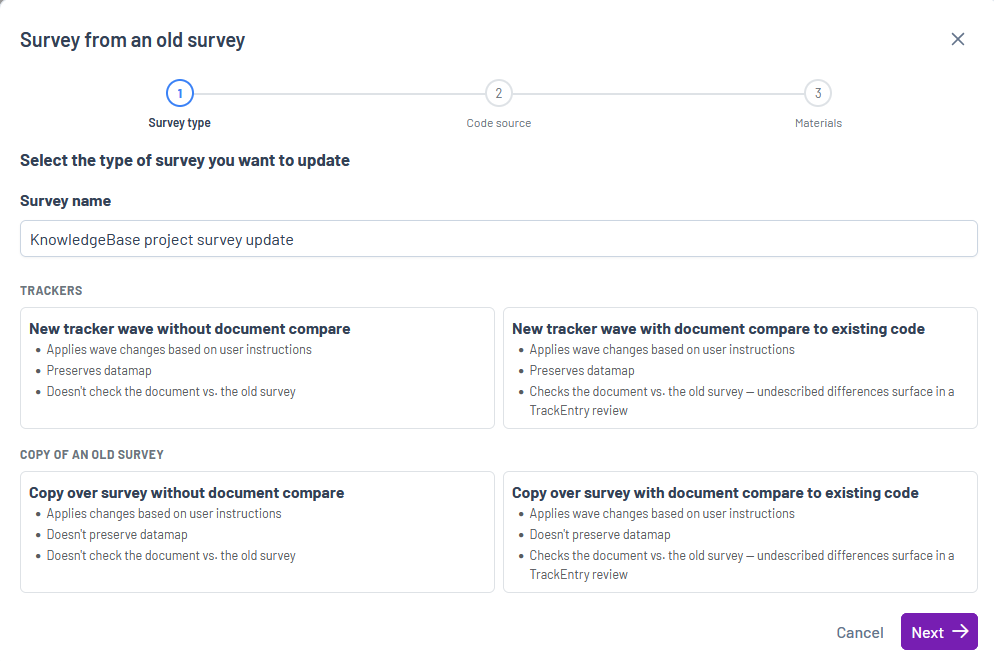
When selecting Survey from an Old Project, the first step is to choose the type of update you want to perform.

Tracker Surveys #

Tracker options preserve the existing data map and help maintain comparability across waves.

New Tracker Wave Without Document Compare

Use this option when:

  • The survey is a new tracker wave
  • The questionnaire does not need to be compared against the previous version

This option preserves the data map but does not analyze differences between the new and old questionnaires.

New Tracker Wave With Document Compare to Existing Code

Use this option when:

  • The survey is a new tracker wave
  • Undescribed differences should be identified

This option preserves the data map and checks the new questionnaire against the existing survey code. Any unexplained differences are surfaced during review.

Copy-over Surveys #

Copy-over options create a new version of an existing survey without applying tracker-specific data preservation rules.

Copy-over Survey Without Document Compare

Use this option when:

  • Creating a new survey based on an existing one
  • Questionnaire comparison is not required

The existing data map is not preserved.

Copy-over Survey With Document Compare to Existing Code

Use this option when:

  • Creating a new survey from an existing survey
  • Additional review of undocumented changes is required

The platform compares the questionnaire against the existing survey and highlights discrepancies for review.


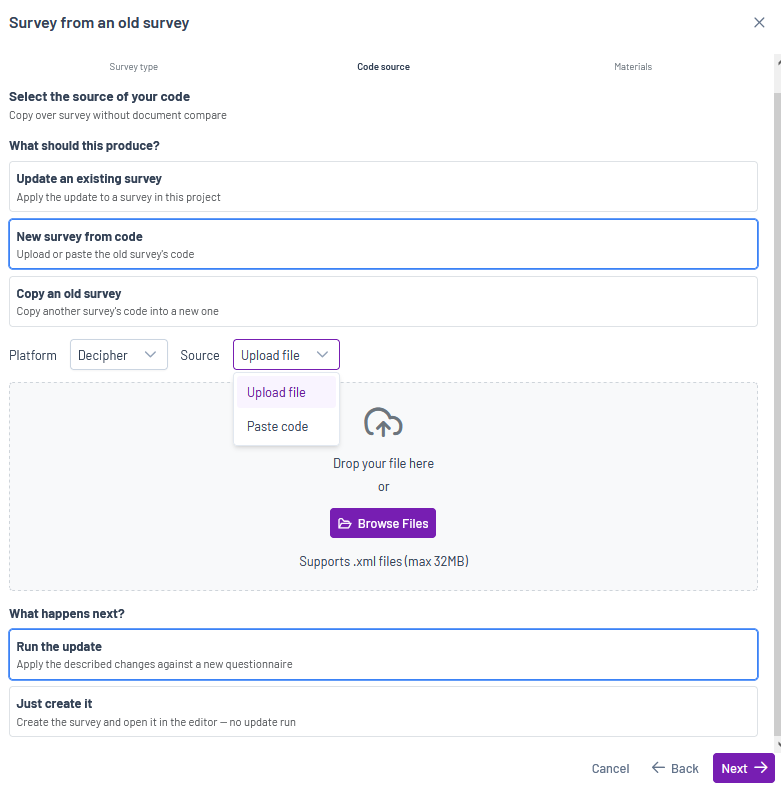
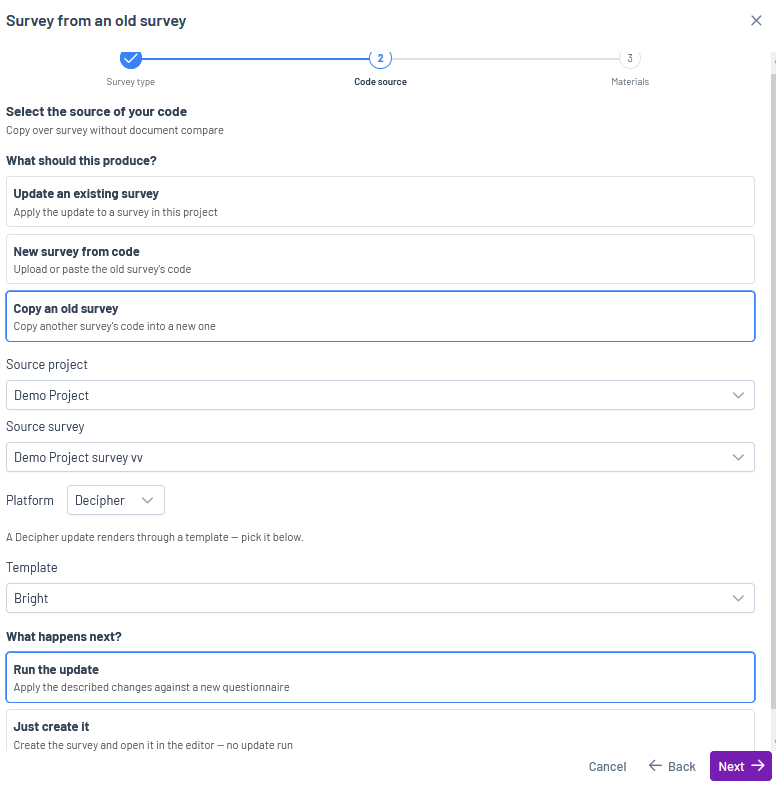
Choose the Code Source #

After selecting the survey type, the next step is to specify where the source survey should come from.

Update an Existing Survey

Apply the update directly to an existing survey within the current project.

Select the survey to update from the available project surveys.

Create a New Survey from Code

Create a new survey by supplying existing survey code.

You can provide code by:

  • Uploading survey files
  • Pasting survey code directly

Copy an Existing Survey

Create a new survey using another survey as the source.

The existing survey structure and code are copied into a new survey that can then be updated independently.


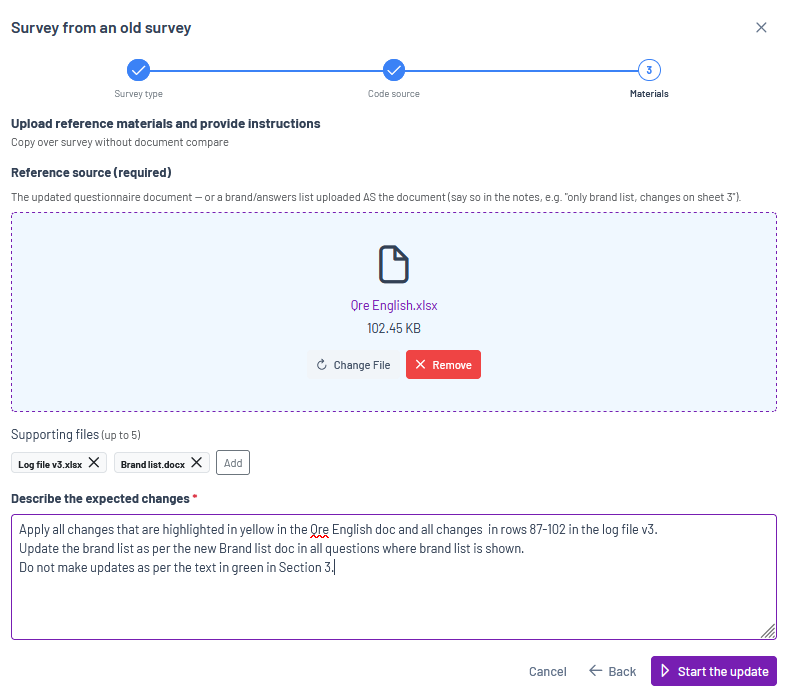
Provide Materials #

The final step is to supply the materials that should guide the update.

These may include:

  • Questionnaires
  • Study specifications
  • Client instructions
  • Supporting project documentation -e.g. external files containing brand lists etc.

The platform uses these materials to determine what changes should be proposed to the existing survey code.

If no questionnaire is supplied, a survey can still be created from existing code without performing a document comparison.

Provide a detailed description of the required changes in the Instructions field of the pop-up window below. Include clear, specific, and unambiguous guidance on what needs to be updated, added, removed, or modified. The more detailed the instructions, the more accurate and relevant the proposed survey updates will be.


Understanding Update Runs #

Once processing begins, the platform creates an update run.

An update run:

  • Uses the survey base (code or project) available at the time the run starts
  • Compares the survey against the supplied materials
  • Identifies proposed changes
  • Applies requested changes following the existing survey code in terms of style and structure
  • Records the update process

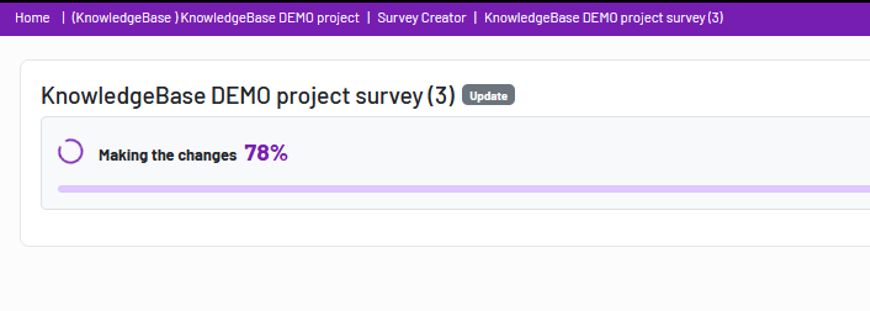
The run page provides progress information while processing and becomes a permanent record of the completed update.

Only one update run can be active for a survey at any given time.

Reviewing Proposed Changes #

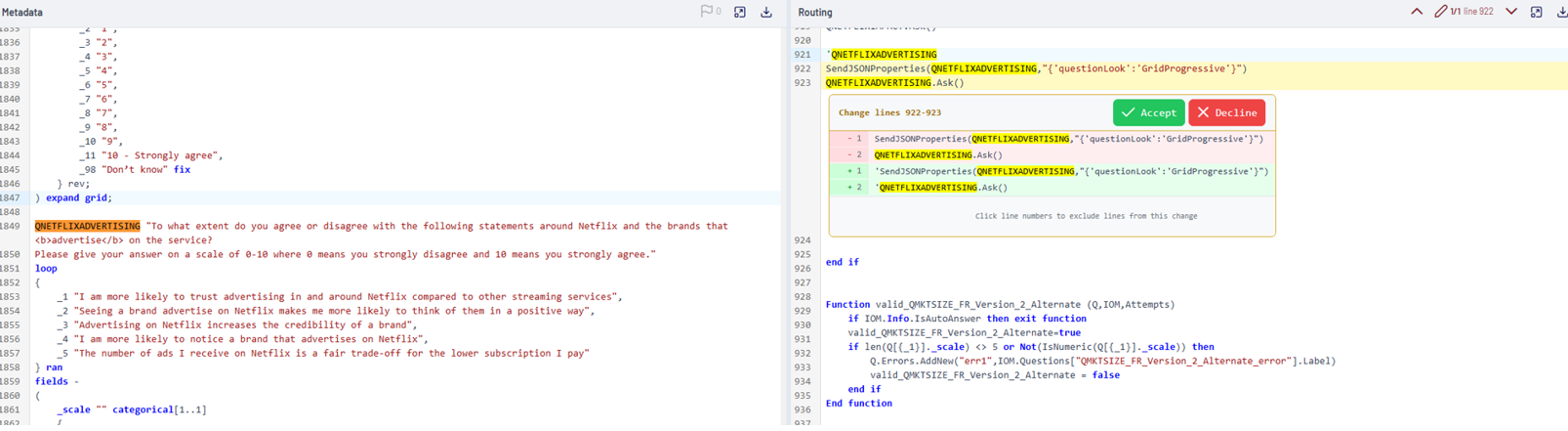
After the update run completes, proposed changes are reviewed directly in a temporary survey editor.

A review banner clearly indicates that review mode is active.
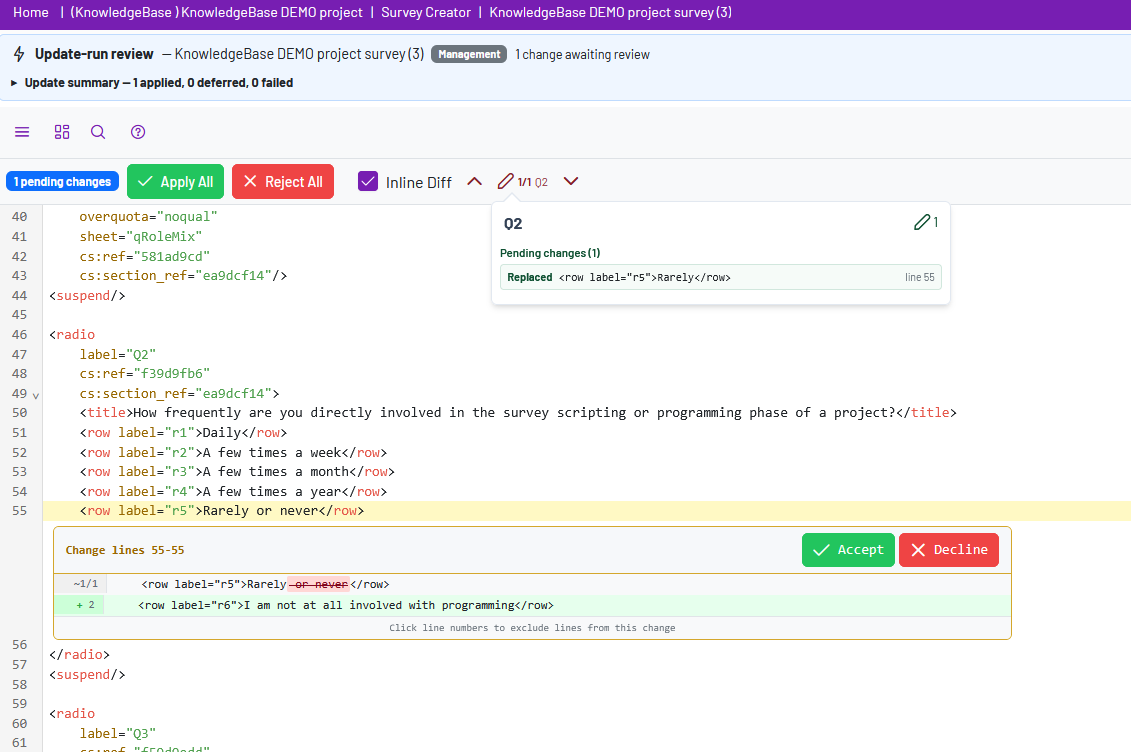
During review you can:

  • Accept changes
  • Decline changes
  • Accept only selected lines from a change
  • Navigate changes using keyboard shortcuts
  • View all proposed changes from the review outline

Reviews are automatically saved and can be resumed later.

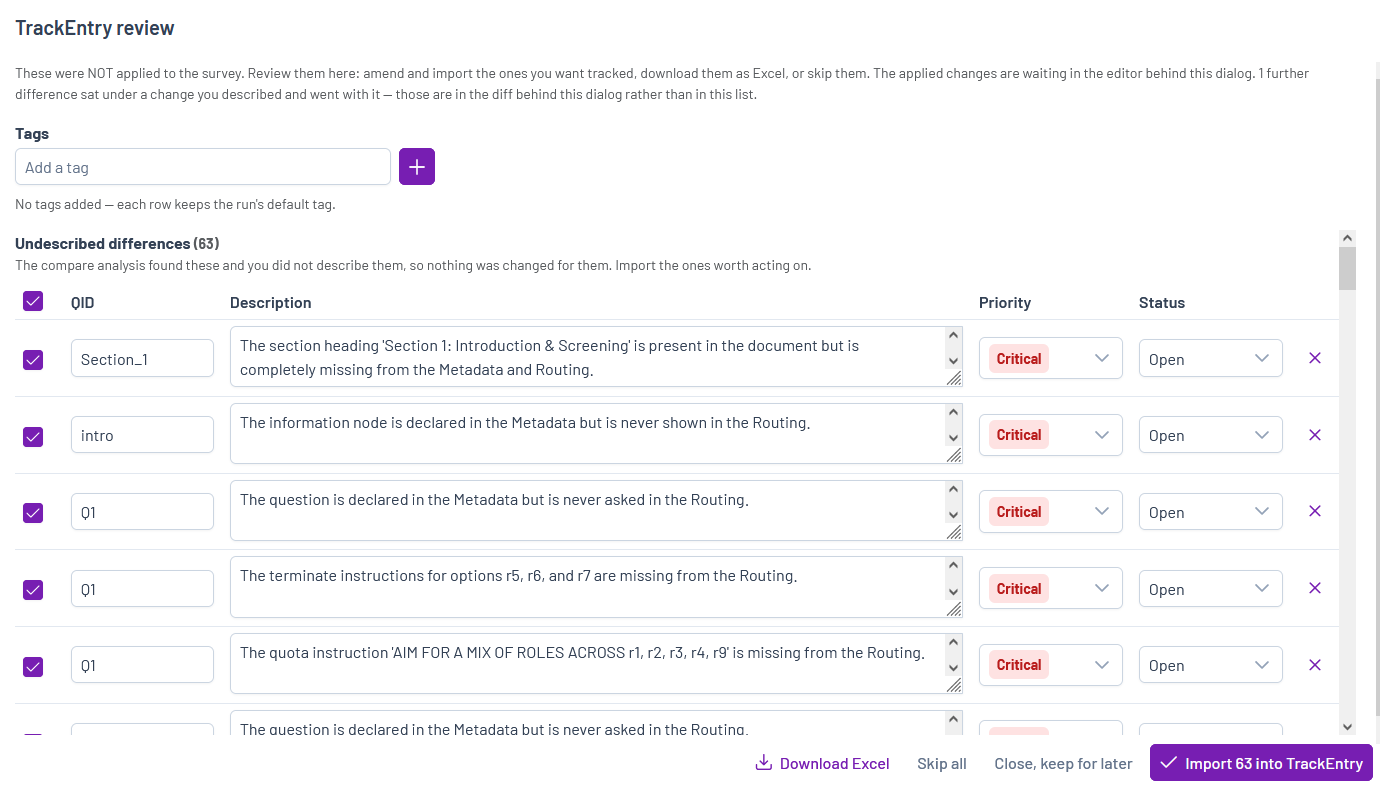
Any changes identified during the comparison process that are not described in the supplied materials are added to TrackEntry for review and validation.

For detailed guidance on reviewing, accepting, and rejecting proposed changes, refer to the following editor documentation:

Decipher Editor
Dimensions Editor

For more information about creating, editing, and managing TrackEntry items, see the TrackEntry article:

When the review is completed:

  • Accepted changes are applied
  • The survey code is saved, and the temporary editor view is closed
  • The changes are now merged into the survey

Tracker Data Protection #

For tracker projects, the platform applies additional safeguards to protect trend data.

Retirement Instead of Deletion

When a question or answer option is no longer used, it is typically retired rather than deleted.

The review identifies:

  • Retired items
  • Removed items
  • Changes requiring confirmation

Data Map Validation

Before changes are saved, the platform checks whether the update would affect the existing data map.

If an issue is detected:

  • Saving is blocked
  • The affected question or answer label is identified
  • An override can be requested

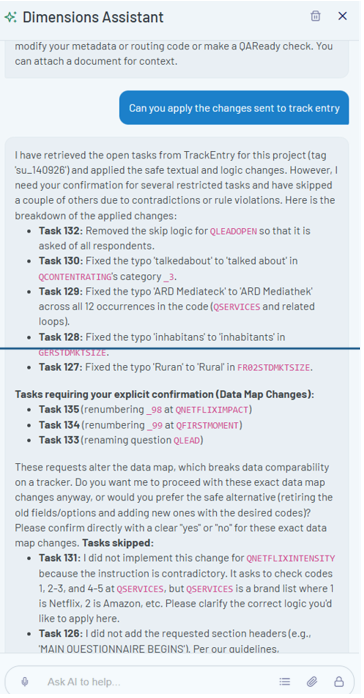
Overrides require explicit confirmation from user – i.e. through the AI Assistant.

How to Create a New SurveyClassic Editor: Control Area
Table of Contents
  • Overview
  • Accessing Survey from old Project
  • Survey Types
    • Tracker Surveys
    • Copy-over Surveys
  • Choose the Code Source
  • Provide Materials
  • Understanding Update Runs
  • Reviewing Proposed Changes
  • Tracker Data Protection

Share This Article :

  • Facebook
  • X
  • LinkedIn
  • Pinterest

Was it helpful ?

  • Happy
  • Normal
  • Sad
Contact form
Contact form
Linkedin

Copyright © 2026 Kalever | Powered by Kalever